Work Hours Management
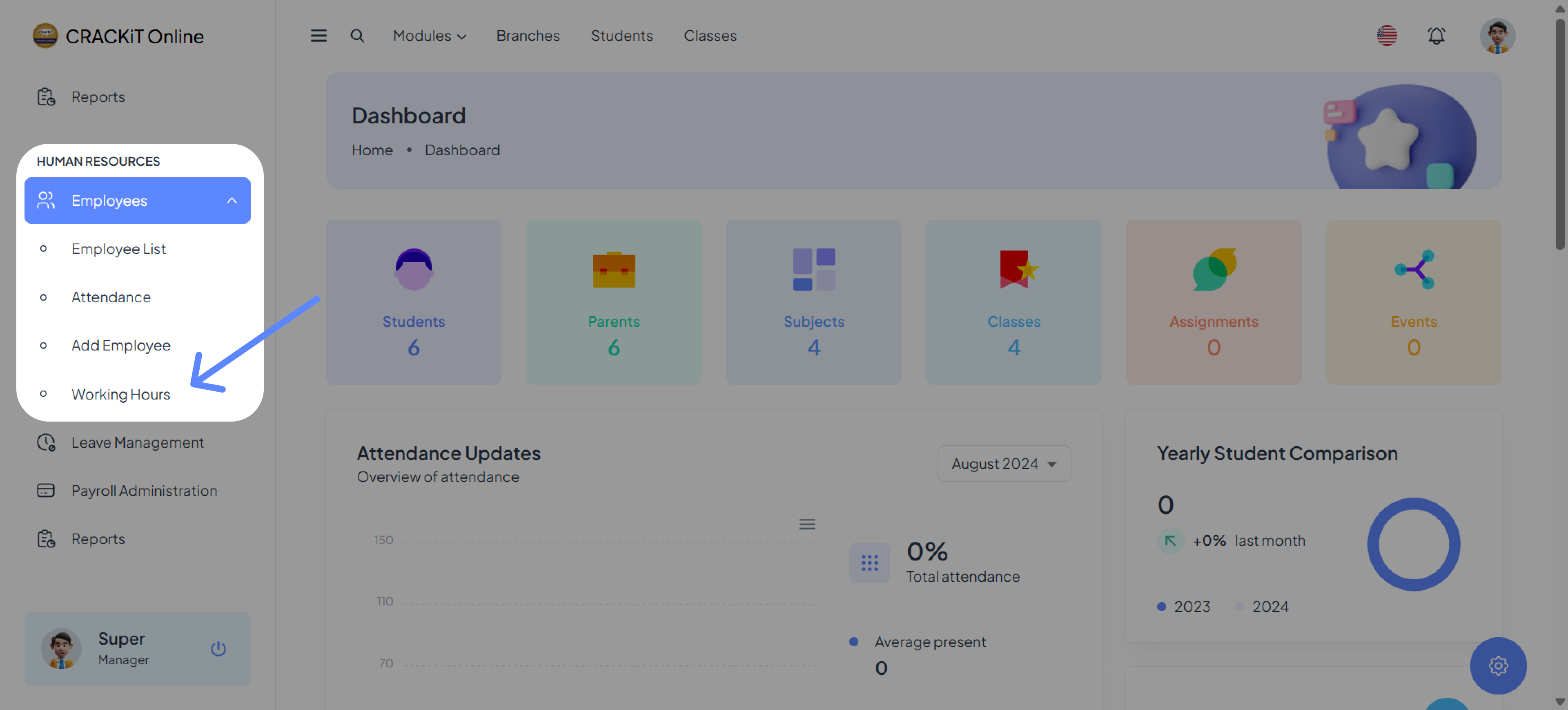
The Working Hours section allows users to log, edit, or delete their working hours. To manage working hours, navigate to the Working Hours section within the Employees module on the sidebar under "Human Resources."

Logging Working Hours
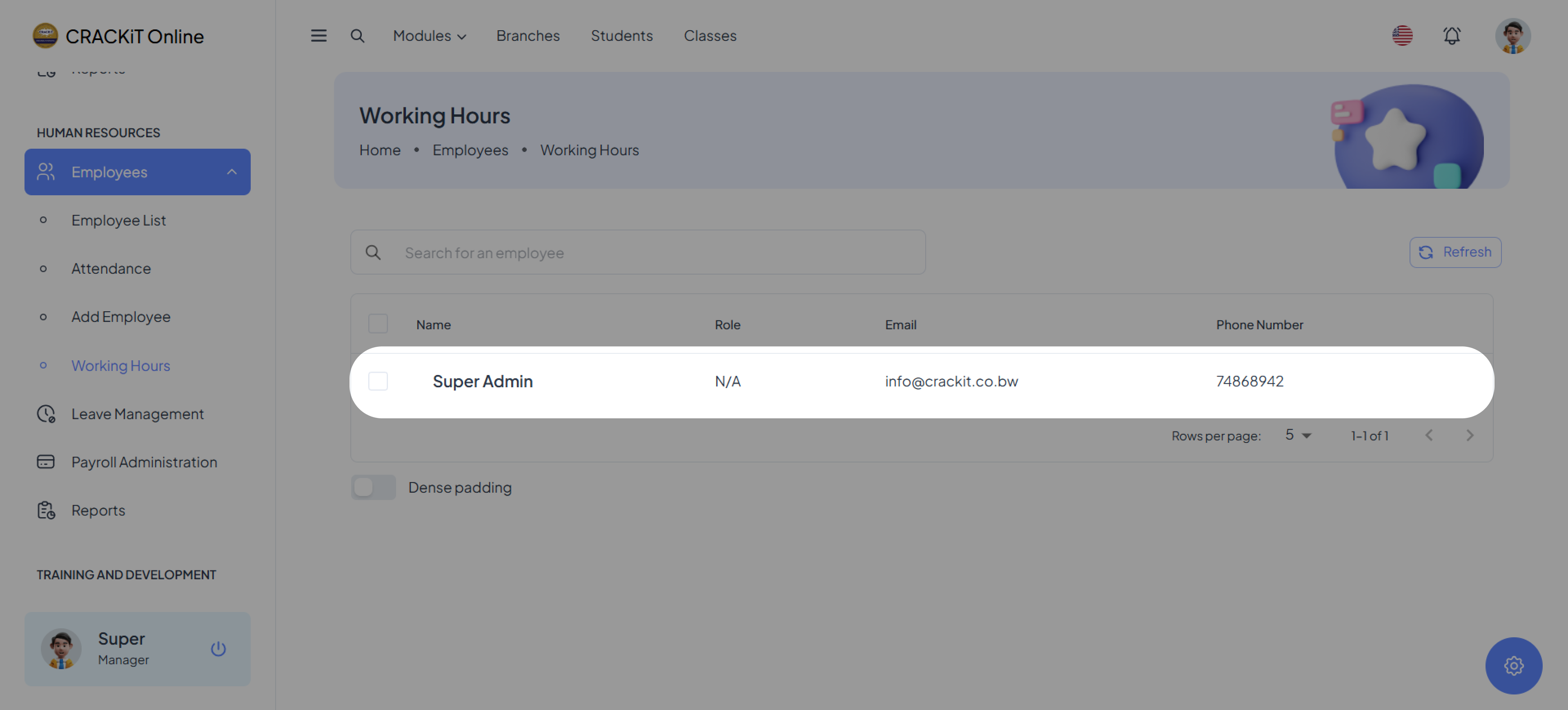
Click on your name under the Working Hours page to open the working hours database associated with your account.
Doing this will show all the hours logged on your account.
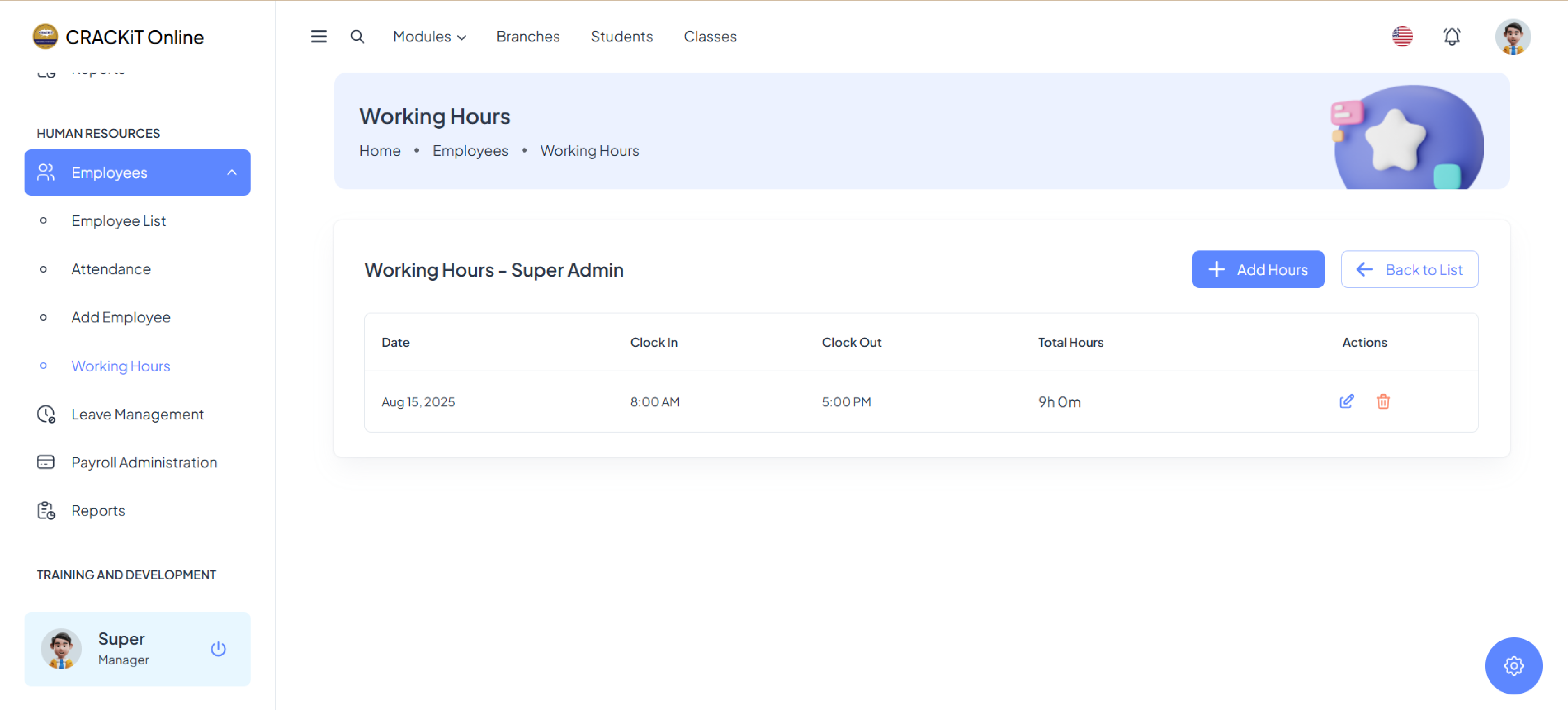
Click Add Hours to open the module for adding working hours.
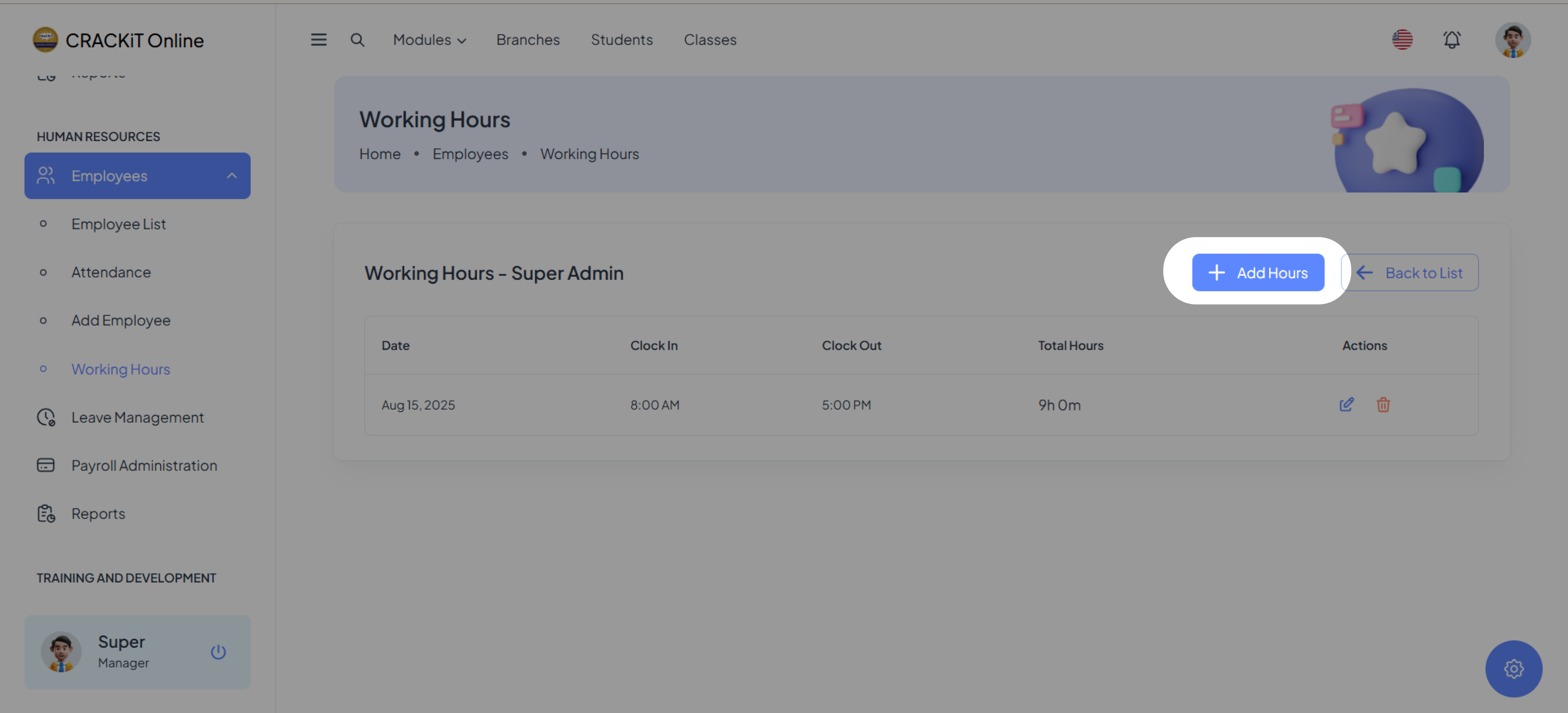
The following pop-up will appear, prompting for the addition of new working hours.
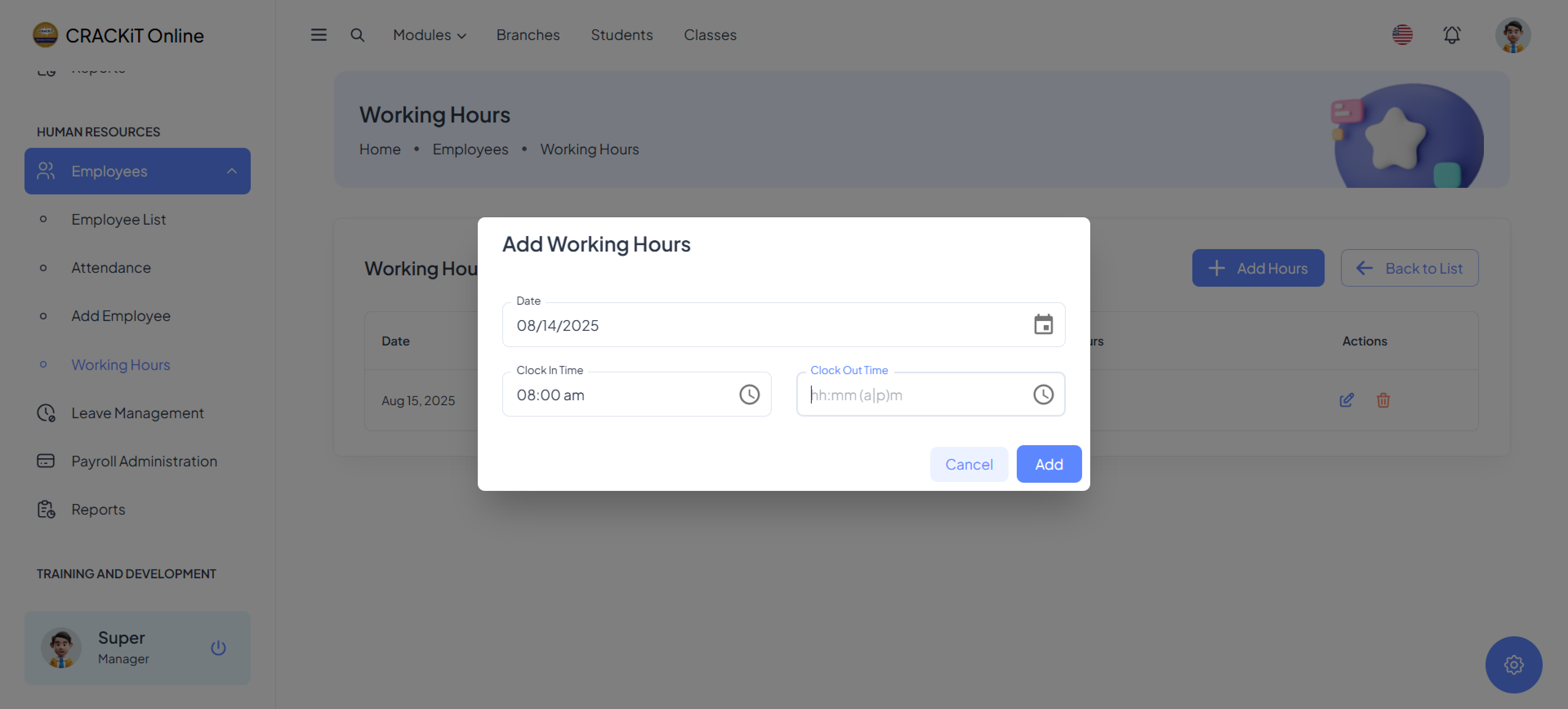
Select the date for which you want to log hours by clicking on the calendar icon.
- Note: Future dates cannot be selected. However, past dates can be chosen to correct errors or log forgotten hours.
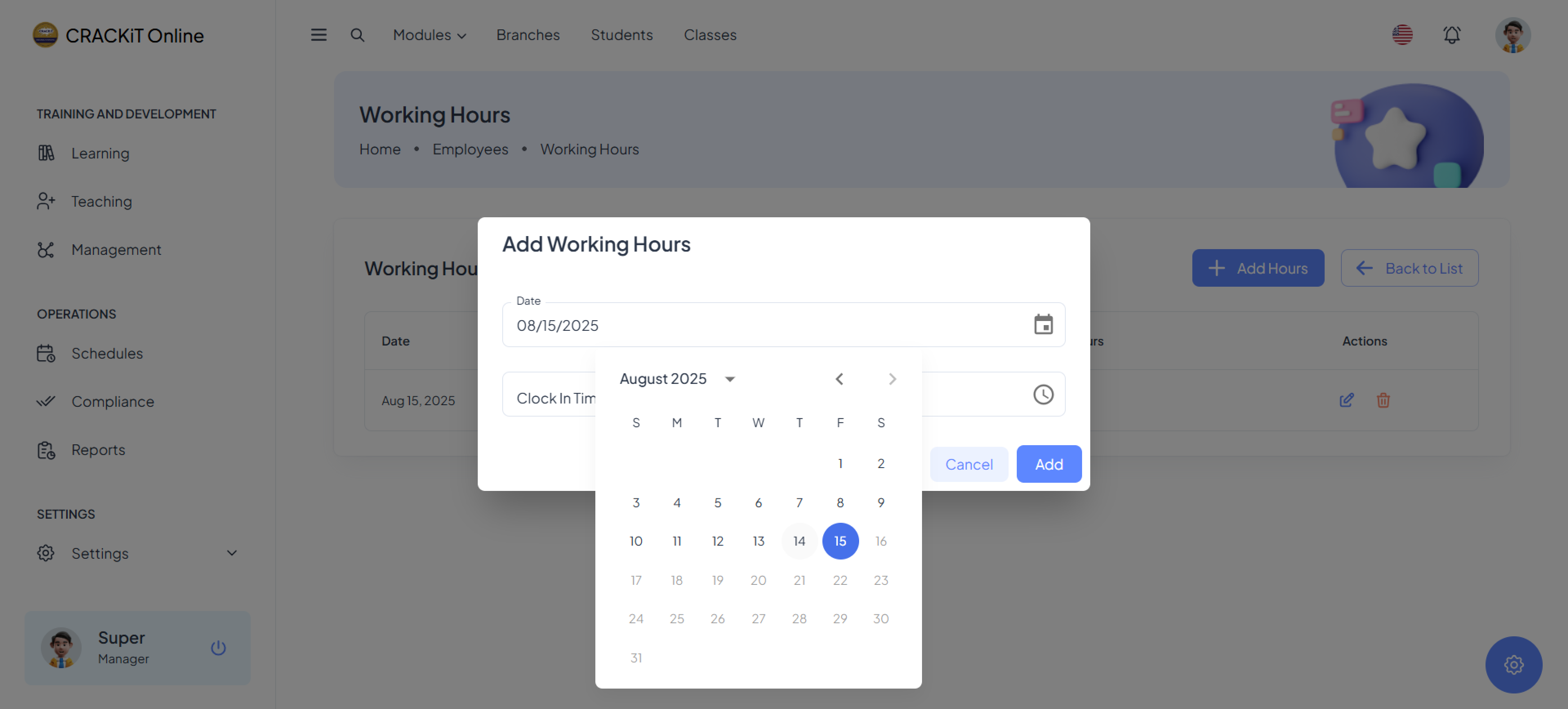
Enter the clock-in and clock-out times.
- Manually entered times must follow the 12-hour format (e.g., 8:00 AM or 5:00 PM).
- If an incorrect format is entered, the system will display an error, and the hours will not be saved.
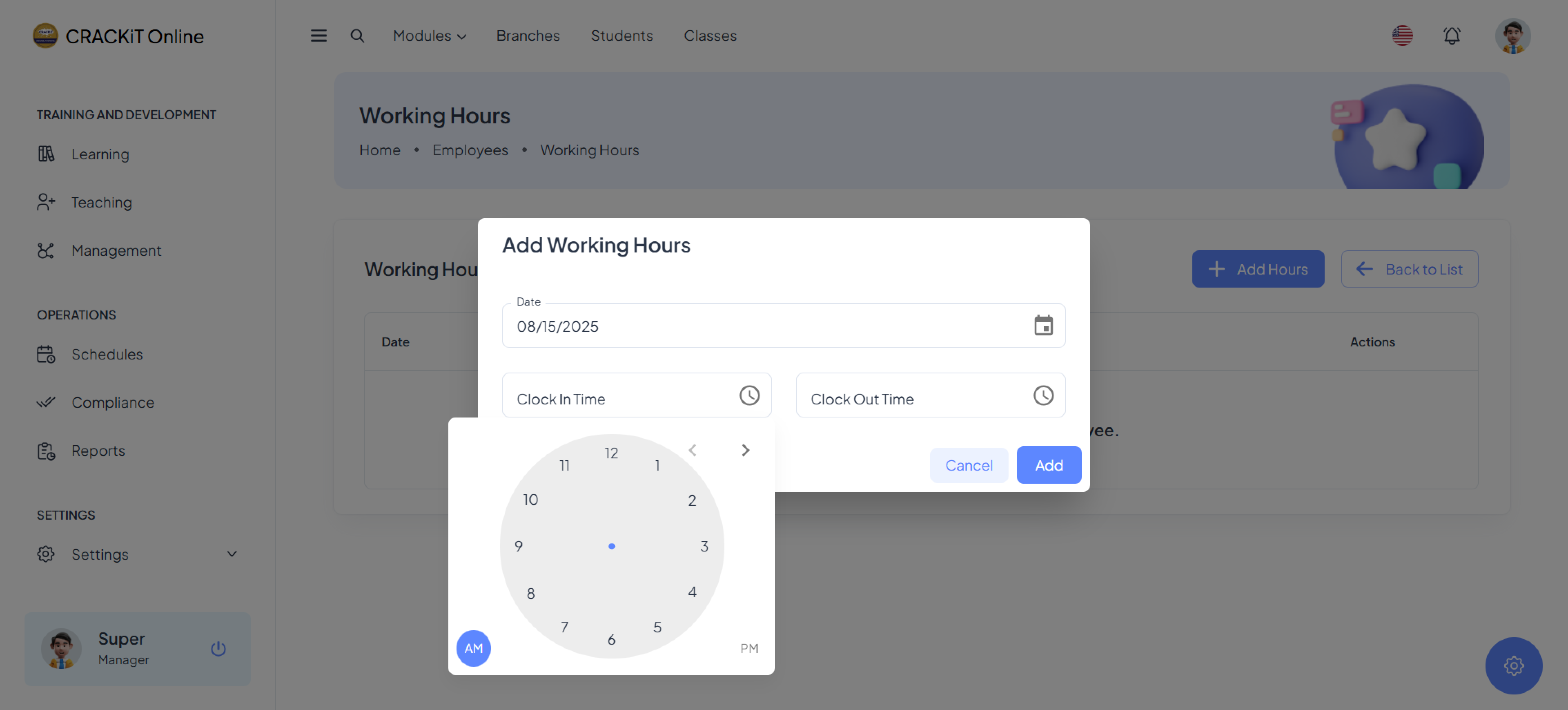
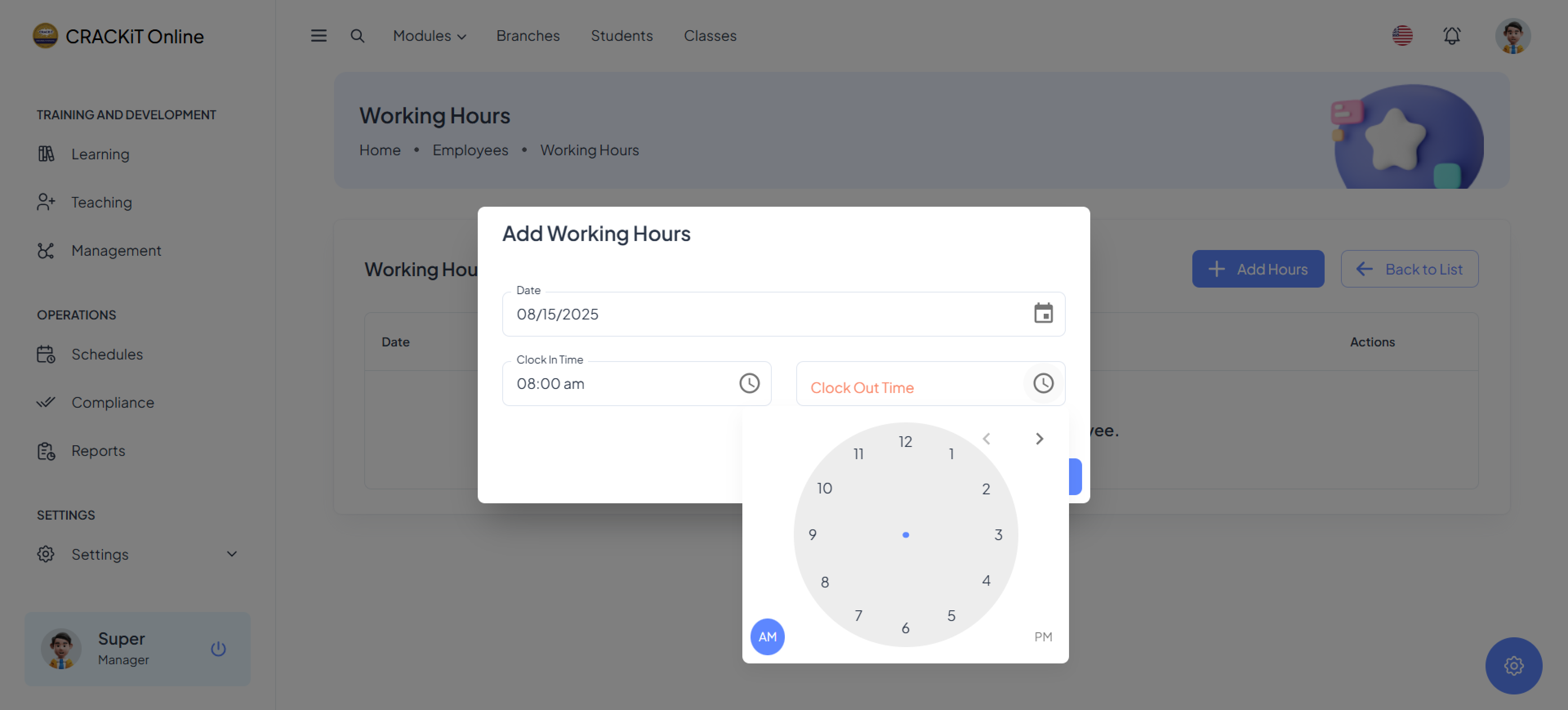
Click Add to save the logged hours. The newly added working hours will appear in the database.
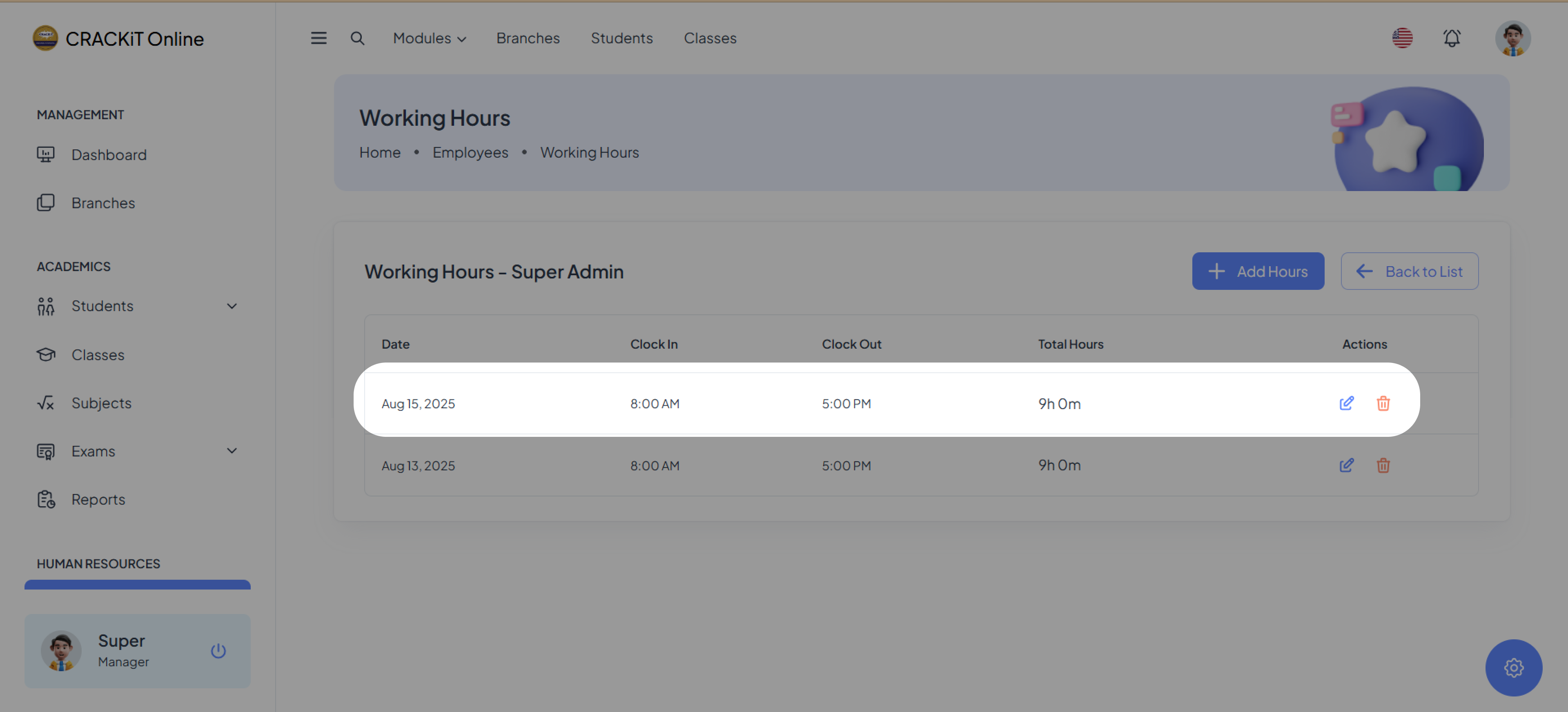
Altering Working Hours
Users can edit or delete existing working hours if the logged data contains errors.
Deleting Working Hours
Click the bin icon under the Actions column on the far right.

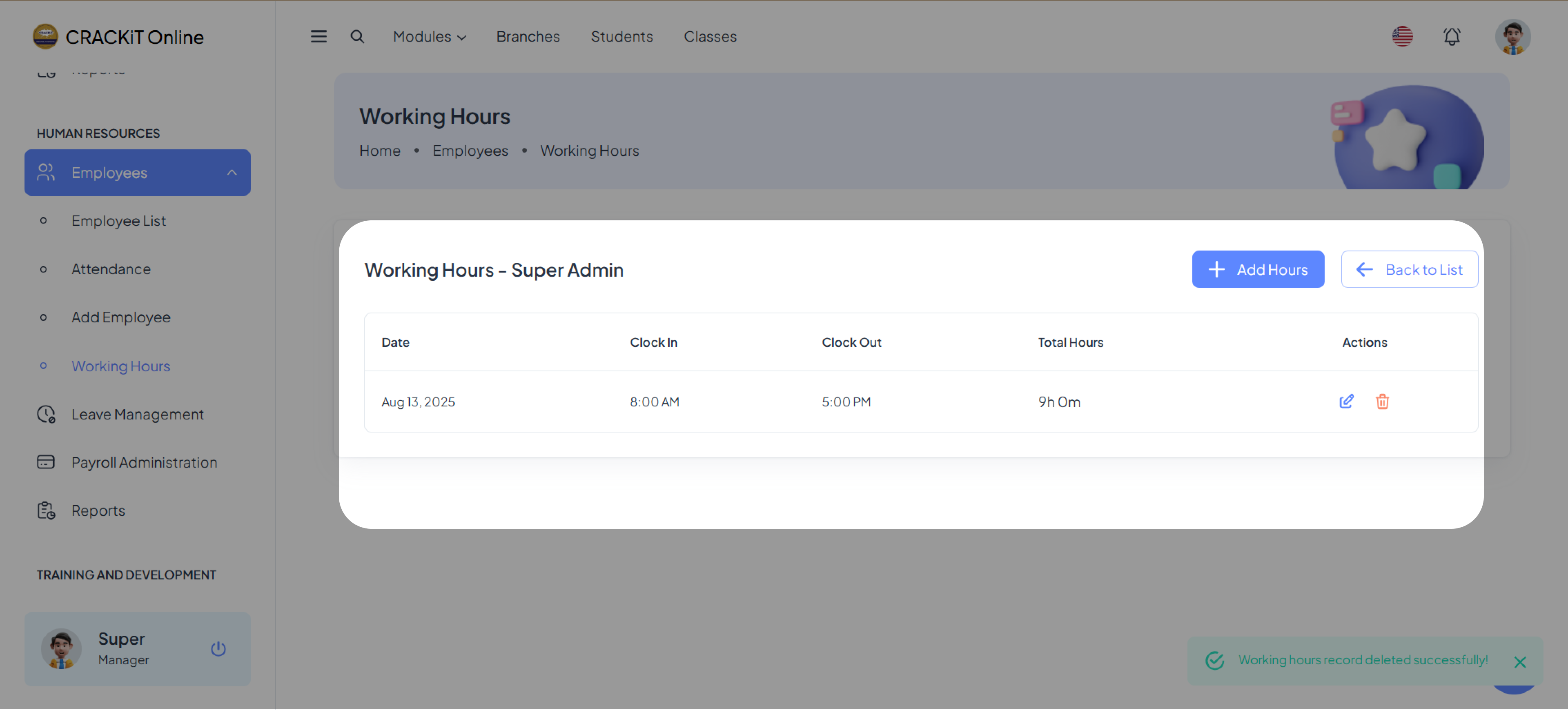
A confirmation pop-up will appear. Click the red Delete button to confirm.

The database will update to reflect the deletion.
Editing Working Hours
Click the pen icon under the Actions column, located next to the delete icon.
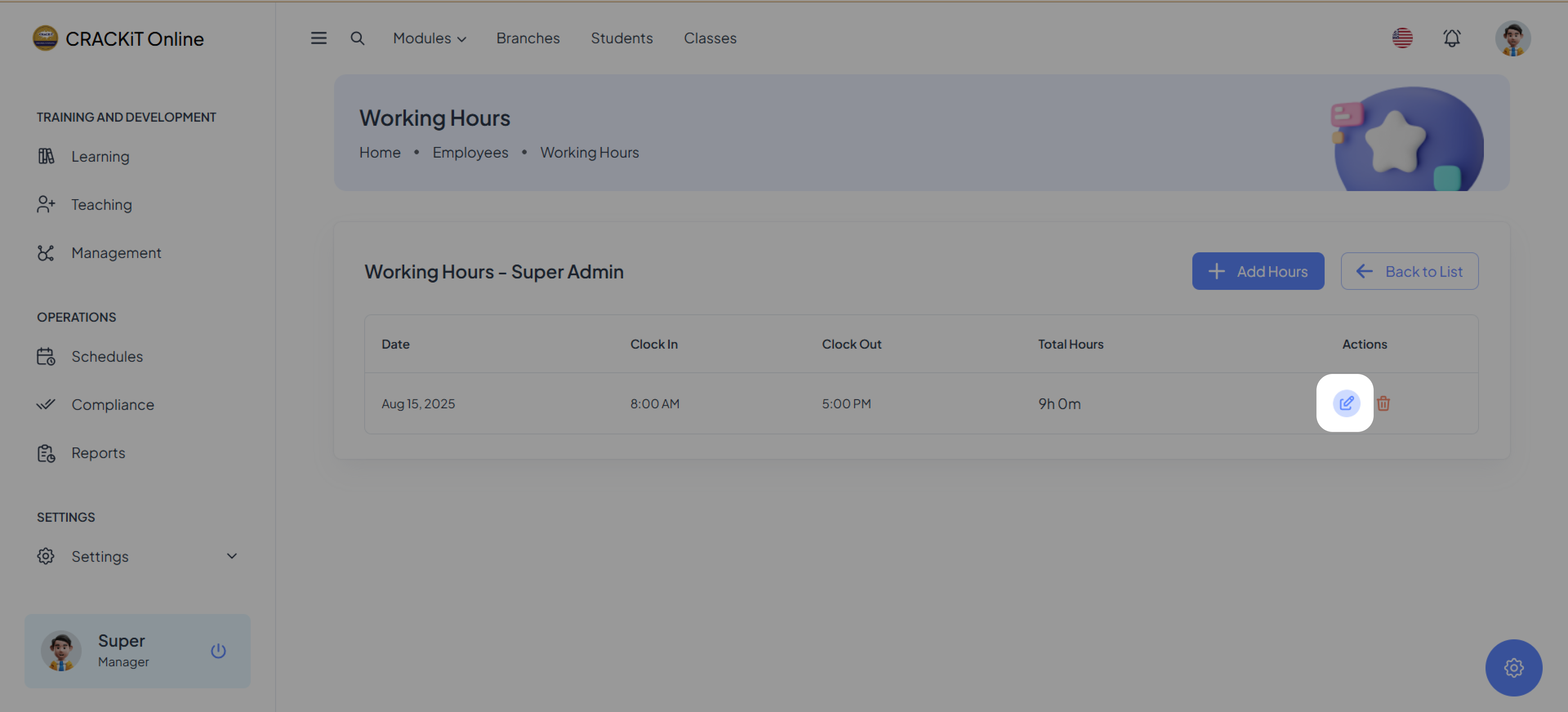
A pop-up similar to the one for adding hours will appear.
 The user can modify any of the following details:
-
- Date
- Clock-in time
- Clock-out time
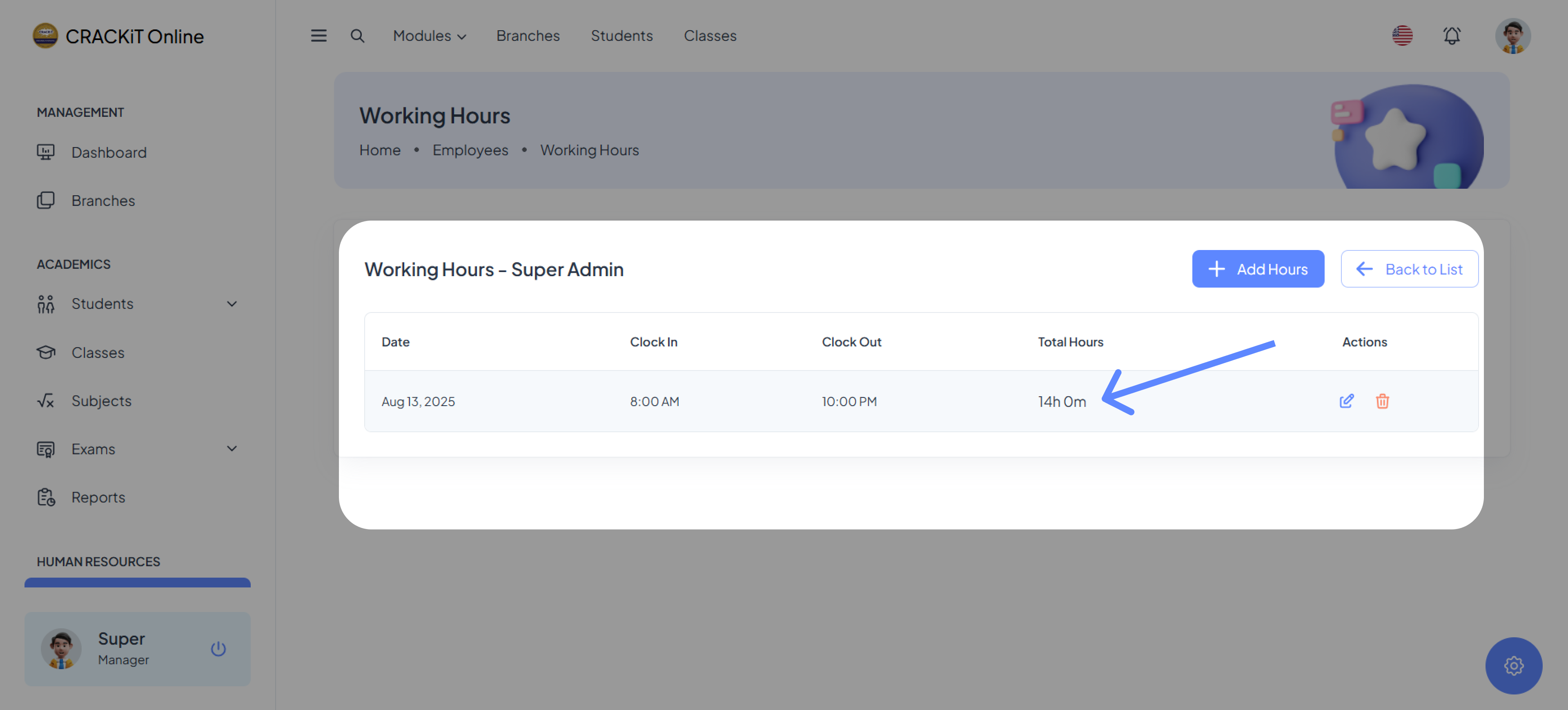
In the given example, the clock-out time has been altered from 05:00 pm to 10:00 pm.

Click Update to save the changes. The working hours database will update accordingly.